

Redesigning BridgeLegal's Matter Page
Transforming a data graveyard into a workflow hub by streamlining navigation, clarifying hierarchy, and reducing task completion time by 42%
42%
Task Completion
60%
Error reduction
~ 9 wks
Timeline
COMPANY NAME
BridgeLegal
ROLE
Product Designer
TEAM
CTO, PM, Integration Engineer, FE Engineer
TOOLS
Whimsical, FullStory, Asana, Figma
The Company
-
BridgeLegal is a legal tech CRM platform serving law firms dealing with class action lawsuits
-
The Matter Page is where paralegals, attorneys, and operations staff manage all client case information"
My Role
-
I led this as the sole product designer
-
I worked with a cross-functional team: CTO, PM, integration engineer, and front-end engineer
The Challenge
-
Despite having all the data users needed, the Matter Page wasn't being used effectively
-
Users were bypassing the system, creating inefficiencies like excessive emails and redundant meetings
The problem
Users had all the data they needed, but couldn't find it efficiently.
The Matter Page contained every piece of client information: contracts, documents, case details, communication history, but the cluttered layout and complex navigation created significant friction. Teams lost time on repetitive tasks like emailing contracts or manually coordinating meetings, ultimately impacting productivity and client satisfaction.

Research & Discovery
To uncover user pain points, I took a multi-faceted approach:
Stakeholder Interviews
Spoke with CTO, operations leads, and attorneys to understand business goals, operational challenges, and strategic priorities.
User Interviews
Conducted direct interviews with paralegals, back-office staff, and funders to gather insights on daily pain points and workflows.
Session Analysis
Reviewed user sessions through FullStory to track navigation patterns and identify where users faced friction or abandoned tasks.
Uncovering friction points

All the necessary details are hidden under a maze of information which is hard for users to navigate through.
The first view only presents the users with the intake form. Each form field is also presented as a editable field.
There is no activity for the matter's journey.

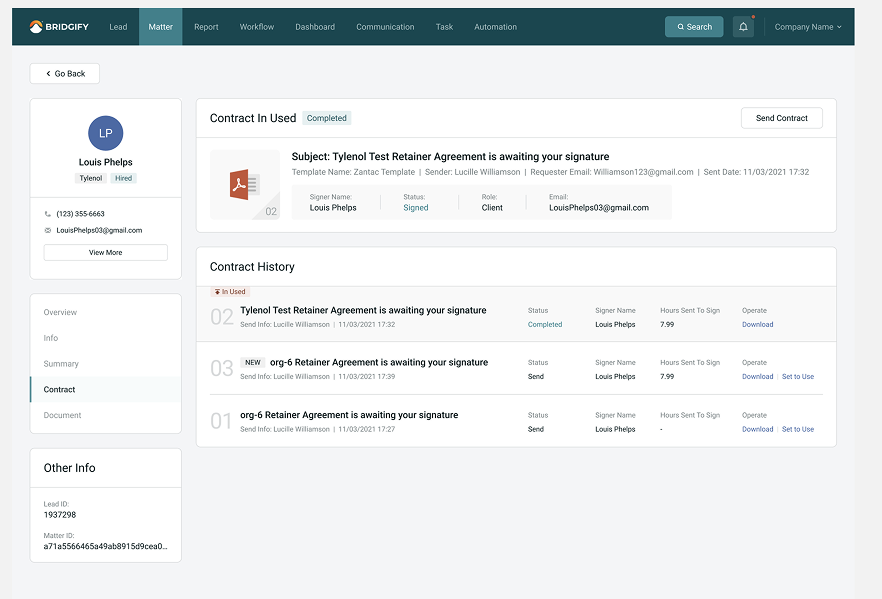
The contract which is one of the most used feature is hidden away under the vertical tab.
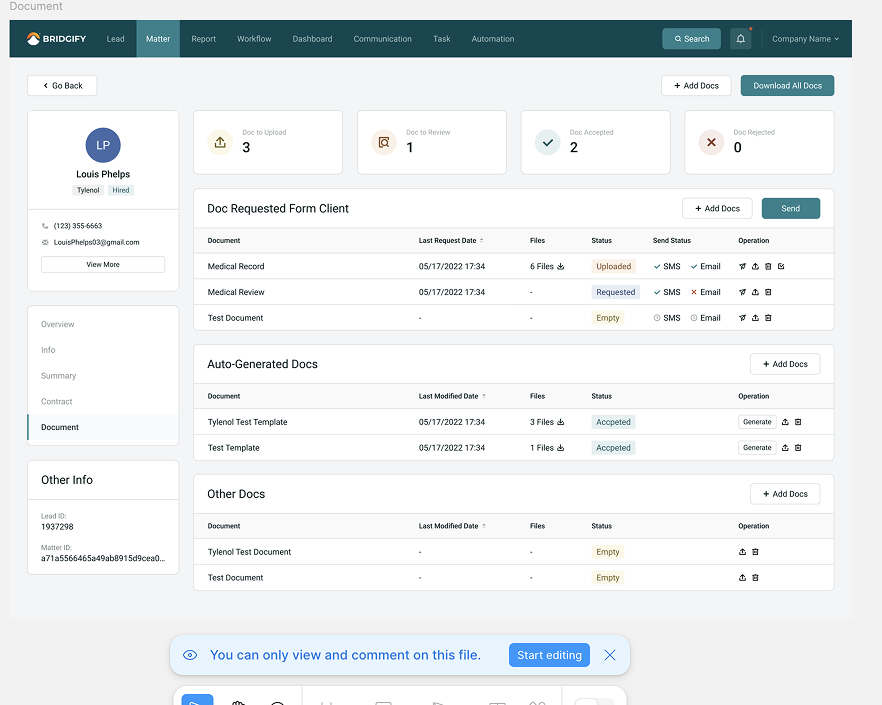
The documents tab does not include the contracts which was confusing for many users.
Synthesis & Affinity Mapping:
I synthesized the research findings using affinity mapping, which allowed me to identify patterns and group related issues. This method helped uncover key themes, such as navigation friction and unclear hierarchy that directly informed our design decisions.
Default edit mode
The default edit mode was difficult to use when users only needed to read or copy information.
Unclear hierarchy
Unclear navigation forcing users to open multiple pages and switch between tabs frequently.
Excessive layering
The layout was bulky and lacked a clear information hierarchy, making it hard to find key details.
Limited feedback
Visual feedback was limited, especially since most users were accessing the platform on desktop devices.
Course of action:
01
User Segmentation:
-
Action-Oriented Users – Back-office employees, paralegals, and other users who actively perform tasks (e.g., updating contracts, Verify ID, Download documents..).
-
Information-Oriented Users – Operations leads, attorneys, and funders who primarily need to view and analyze data for case evaluation.
02
Focus on Information Architecture:
We prioritized identifying the key information users need and presenting it in a clear, intuitive structure.
03
Streamline Navigation and Reduce Friction
We simplified the navigation structure by reducing the number of layers and consolidating related information, making it easier for users to complete tasks without switching between tabs.
04
Improve Visual Feedback and User Interaction
We added real-time status updates, loading indicators, and clear confirmations to enhance user confidence and create a more responsive experience.
Based on our research insights, we defined a clear course of action: simplify the user experience, restructure information architecture, and tailor the interface to meet the distinct needs of action-driven and information-focused users.
The Problem Statement
The Matter Page was intended to be the central hub for client handoffs and case management at BridgeLegal but users weren’t using it that way. Despite containing all the necessary information, the page’s cluttered layout and complex navigation created significant friction.
The Matter Page had become a data graveyard rather than a workflow hub.
Users had all the information they needed, but:
-
The interface didn't match their mental model
-
High-frequency actions required too many clicks
-
There was no differentiation between 'doing' and 'viewing'
Defining the users
User Segmentation I identified two distinct user archetypes:

Action-Oriented Users:
(paralegals, back-office) - need to DO things - High Frequency, Low Duration
Action-Oriented Tasks:
-
Client communication
-
Uploading documents
-
Tracking medical/pharmacy records
-
Filling forms
-
Updating case status
Information-Oriented Users:
Operations leads, attorneys, funders etc - need to VIEW things - Low Frequency, High Duration
Information-Oriented Needs :
-
Form progress
-
Docket information
-
AI-generated summary
-
Upcoming activity
-
Matter journey

Building the Information Architecture
Version 1 was built with including several new key features to the matter page. Some of them was including “an edit and view mode” , separating actionable items from visual ones, introducing a new page called the “over view” page to lay out all the important information and activity.

Initial Ideas
After talking to both the user groups and observing how users worked with the matter page during their calls I started sketching out my initial designs on Whimsical.
I mapped all possible user paths and identified opportunities to reduce layers from 3-4 levels to 1-2.


-
I started of with wireframing the main pages of the matter page. I explored quite a few layout for the overview page.
-
For the documents page I toyed with the idea of having both a list and a grid view.
The main challenge was redesigning the intake forms on the matter. I added a view/edit mode for the forms as well, the default mode would depend on the type of user.
I added a header that would hold the client’s personal info, the status of the matter, and the organizations details.
I also introduced a nav bar, since the forms are too long and we found out that users spend a long time scrolling through them.
The Redesign
For visual design, I worked within BridgeLegal's existing design system but made strategic refinements.

Design principles:
-
Clarity over density
-
Feedback at every action - Added loading states, success confirmations, error messaging
-
Added more components
Specific refinements:
-
Updated spacing system for better visual rhythm
-
Created several multi state components
-
Introduced status color system (green = active, yellow = pending, etc.)
-
Made CTAs more prominent with increased contrast
-
Added micro-interactions (hover states, transitions) for better perceived performance
Screen 1: Overview Page
The new matter page.
-
Left section: Intake information at-a-glance - matter stage, personal info, docket info
-
Middle section: The Case summary, pending tasks
-
Right sidebar: Live activity feed showing matter journey - intake contact with audio recordings, contracts signed, documents uploaded (with filters)
The layout serves both user types: Info-oriented users get their snapshot immediately. Action-oriented users have quick access to common tasks.

Problem
Users landed on the intake form (action-heavy), but information-oriented users just needed status checks. This forced unnecessary navigation for the majority.
Solution
Created a new Overview page as the default landing showing matter status, recent activity, key metrics, and quick actions. This serves information needs first while providing action affordances.
Rationale
Session data showed action-oriented users visiting 2-3x more frequently but staying only 30 seconds. They just needed to check or update status. Serving this need first improved efficiency for the majority.
Impact
Status checks reduced from 45 seconds to 8 seconds. User satisfaction scores increased significantly in post-launch surveys.
Screen 2: Forms (Two Modes)
-
Information is displayed in a view only mode as default, not in editable fields
-
Clear edit button in top right
-
Copy icons for frequently copied fields (case number, client ID)
-
Visual hierarchy - most important info (client name, org) at top
This reduced 'accidental edits' by 78% in testing.

Problem
Intake forms contained 50+ fields requiring excessive scrolling. Users often needed to update just one specific section.
Solution
Added a persistent sidebar navigation that lets users jump directly to form sections (Personal Info, Employment, Medical, etc.) without scrolling.
Rationale
Task analysis showed users typically updated 1-2 sections per session, not the entire form. Jump navigation reduced time-to-task by half.
Impact
42% reduction in form completion time. Particularly impactful for back-office staff who update forms multiple times daily.
Screen 3: Documents
-
Documents, Dockets , Contracts all grouped together in a single page
-
Introduced a batch download button to download all the documents in a folder
-
Included no.of files, status updates in the tabular view

Problem
Contracts were in a separate tab from Documents, but users expected contracts IN the Documents section. This created confusion and extra navigation.
Solution
Consolidated contracts into the Documents section with a dedicated sub-tab. Made contracts the default view since they were accessed 4x more than other document types.
Rationale
Mental model alignment - in users' minds, contracts ARE documents. The previous separation was technical, not user-centered. Consolidation matched user expectations.
Impact
Contract access time reduced by 60%. User interviews showed this single change significantly improved perceived ease of use.


Feedback & Next Steps:
01
User Efficiency:
-
Task completion time decreased 42% (measured in prototype testing)
-
Navigation layers reduced from 3-4 to 1-2
-
'Accidental edit' errors down 78%
02
Business Value
-
The sales team started using the high-fidelity prototype in client pitches
-
Back-office users reported improved workflow
-
Reduced handoff meetings (qualitative feedback)
03
Product Evolution
-
The design became foundation for subsequent features
-
Design system refinements were adopted across other pages
-
Established pattern library for future work